
Gravity Flow 3.1 is here, and makes branching your workflow simpler than ever.
The star of the show is the new Selection Routing step, which reads dropdowns or radio fields and sends each entry to the right step automatically, with no conditional logic to create or maintain.
In this post we’ll take a closer look at what this new step does, why it’s an improvement over the old way, and how to set it up on your own site.
Let’s dive in…
Problems that Preferred Routing solves
Gravity Flow has always been able to branch workflows. The problem is the amount of setup required to achieve it.
Sending entries to different paths means building conditional logic throughout your steps, then keeping everything in sync whenever the form or workflow changes.
Many customers create their own solutions. One of our beta testers told us that they had spent years “pretending” to branch, using an empty conditional Notification step that didn’t send anything, with a Next Step that would route the entry to the right place if the condition was met.
Dodgy? Very. But it’s complicated to build, and easy to break.
The new Preferred Routing step eliminates all that. One step, one Route table, and every entry lands in the right place.
What you’ll find in the Preferred Routing step
When an entry reaches the Preferred Routing step, routing occurs automatically based on the selection the sender made in the dropdown or radio field. Entries move directly to the matching step, with no user interaction and no approval to wait for.
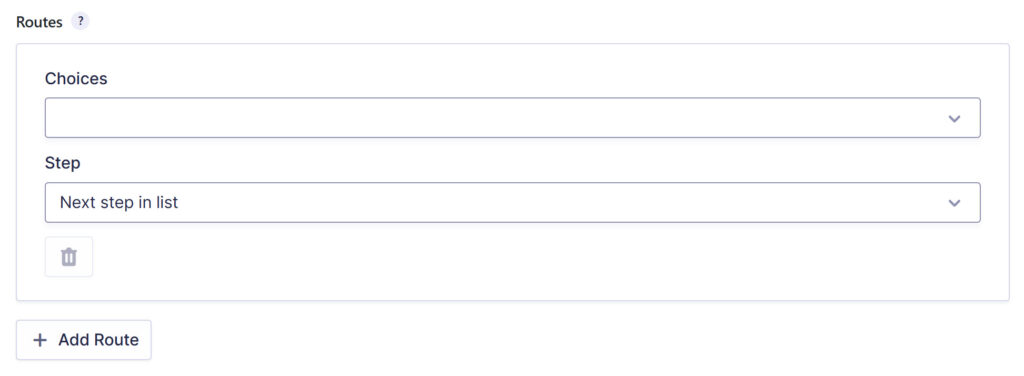
Here’s what makes Preferred Routing so easy to use:
- Create as many routes as you need – Each route can send one option, or multiple options, to the same step.
- There is never any overlap – Each option can only belong to one route, so your routing remains easy to maintain as the form evolves.
- Default Step Route catches everything – If an entry appears with options that don’t match any routes, it will go to your default route, so nothing gets through.
- Every decision is recorded – Gravity Flow records every routing decision in the entry timeline, so you can always see which path the entry took, and why.
How to set up Preferred Routing steps
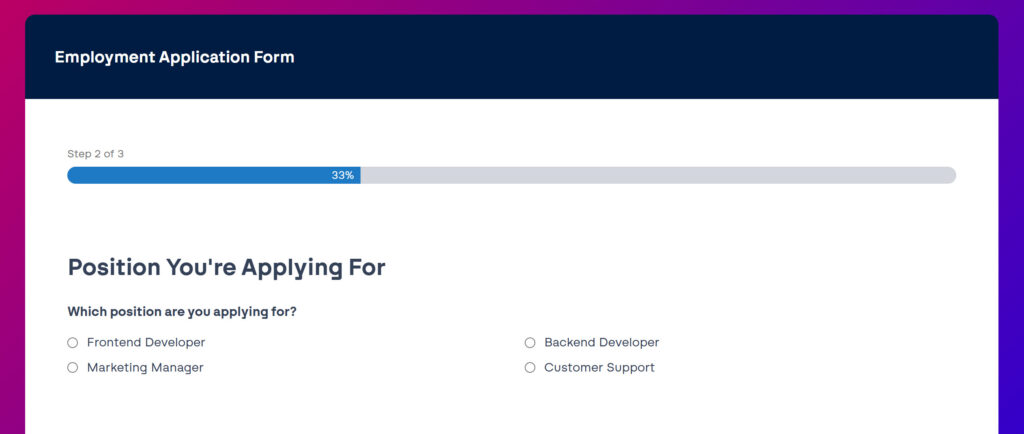
Time for a real world example. Let’s say you’re recruiting for multiple teams, and each candidate applies via one job application form. The form has a Position Applied field, and each application should contact the appropriate hiring manager for review. Here’s how you set it up…
1. Add the step to your workflow – Go to your workflow settings, add a new step, and give it a name (such as “Route by position”). Set the step type to Preferred Routing.
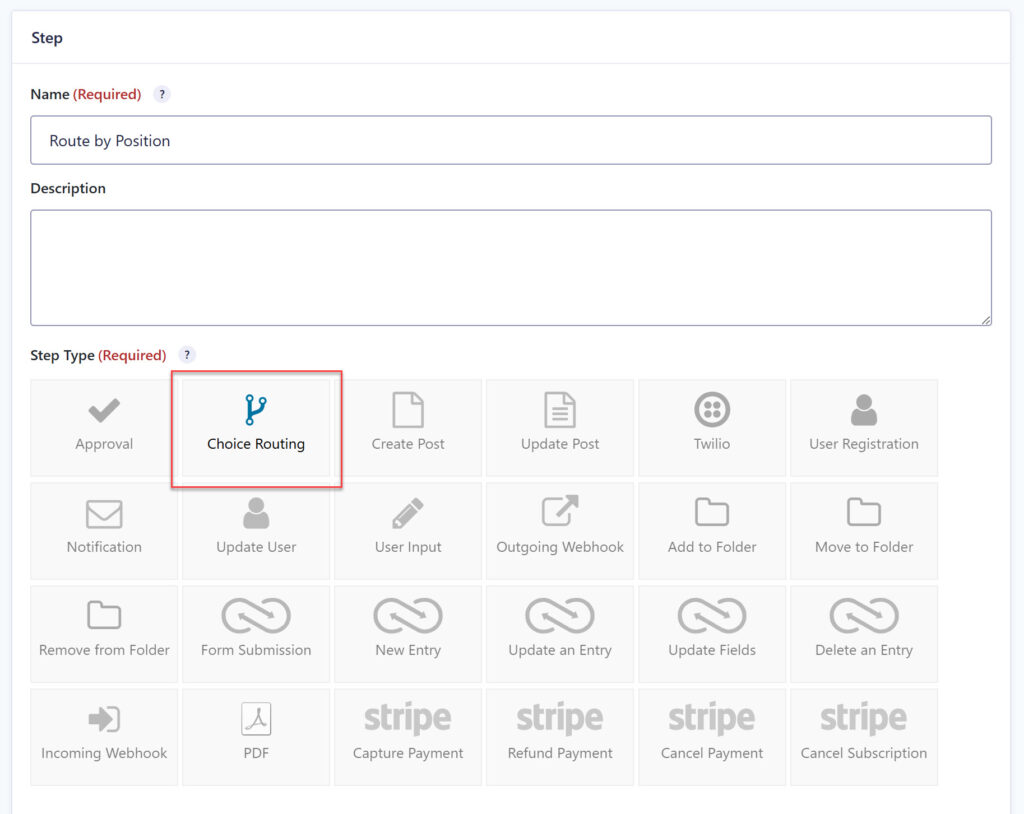
2. Select the field to route – Select the dropdown or radio column that contains the options. In this case, that is the Position Applied for.
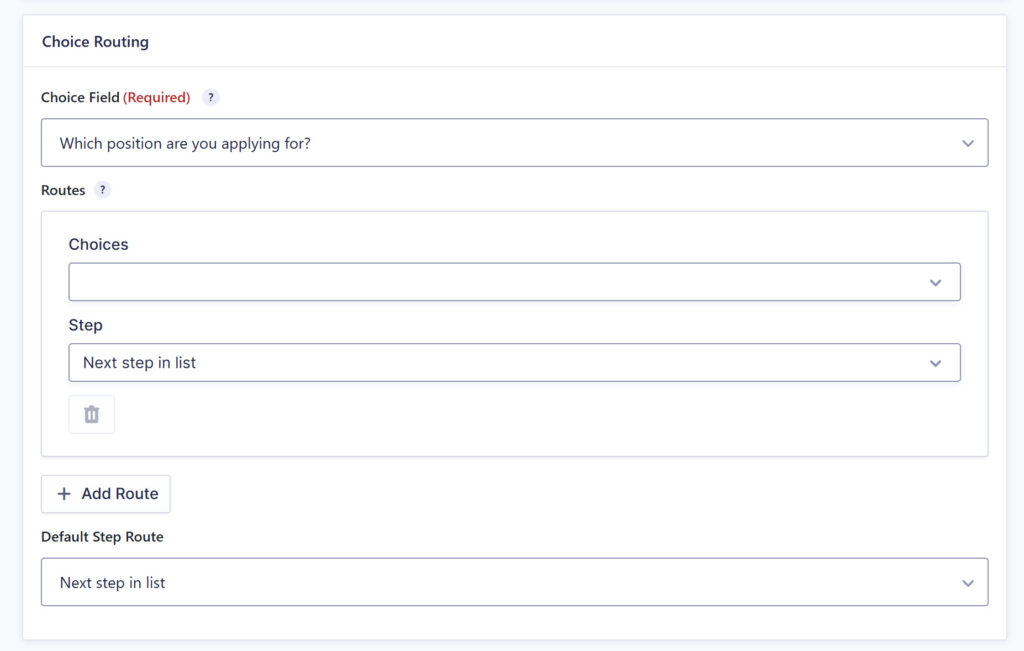
3. Build your route – In the Route table, each row maps one or more options to a destination step. Our recruiting workflow looks like this:
- Frontend Developer and Backend Developer applications head to the Engineering Lead approval step.
- Marketing Manager applications are sent to the Head of Marketing.
- Customer Support Applications are accepted by the Support Team Leader.
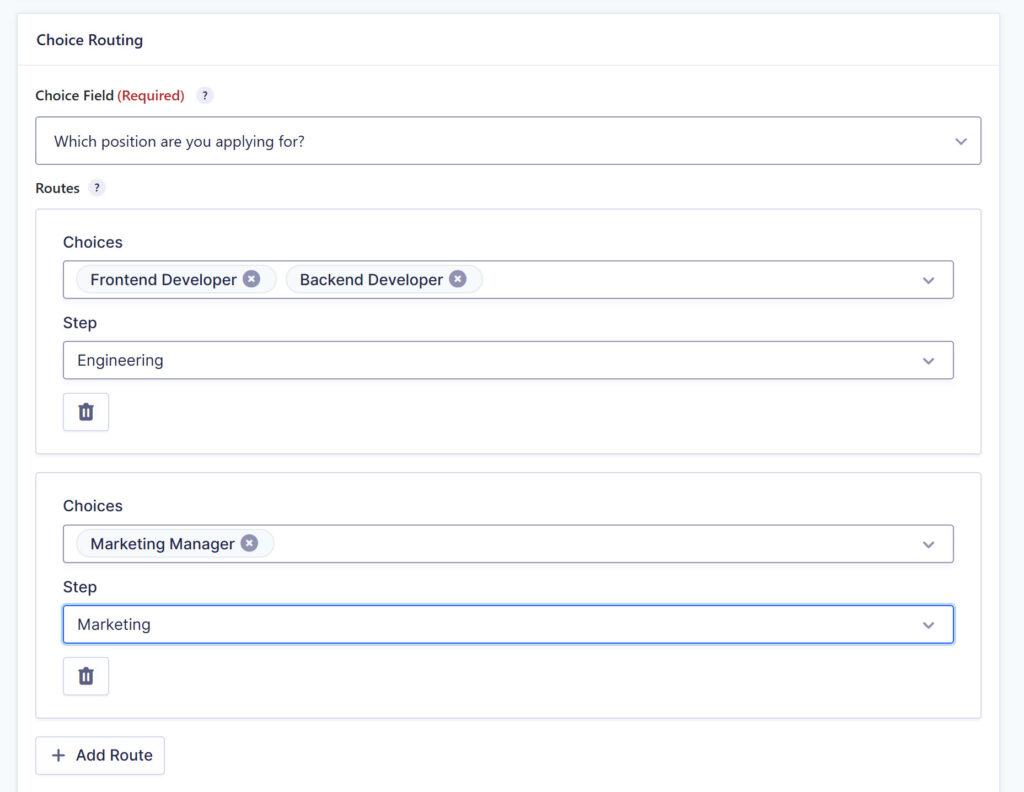
Note that both developer roles share routes. That is “one choice or several” flexibility in action.
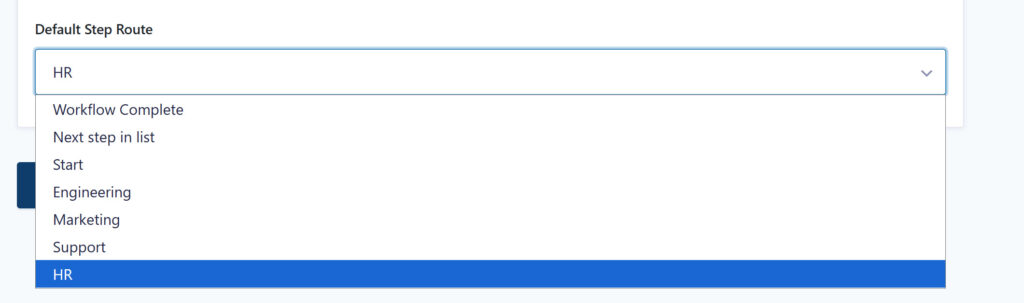
4. Set Your Default Step Route – Navigate to HR review steps. Now any apps that don’t match the route, including the positions you added, will end up in a safe place instead of stalling.
5. Save and test – Submit a test request, then open the timeline to check that the routing decision has been recorded and that the entry landed where you expected.
And that’s all! Even better, the workflow is easy to maintain as well as create. When a new position opens, you simply update the Route table. If the new role is owned by an existing hiring manager, that’s the only change you’ll make. If a completely new approval step is needed, you set up that one step and leave the other steps alone. No restructuring of conditional logic throughout your workflow.
For more information about the Preferred Routing step, see the documentation.
Update to Gravity Flow 3.1
Gravity Flow 3.1 is now available to all customers with an active license.
If you have automatic updates enabled, you’re all set. If not, go to your WordPress dashboard, go to your plugins page, and click to update to version 3.1. You can also download the latest version from within your Gravity Flow Account.
New to Gravity Flow? Visit our pricing page to get started, or sign up for a personalized Gravity Flow 3.1 demo to see how Preferred Routing works.
Further Flow 3.1 resources
For more information about Gravity Flow 3.1, see the following articles:
Have questions about the new Preferred Routing Steps or how to update to 3.1? Contact our Support team, they are always happy to help.

Bulletin
If you want to stay up to date on what’s happening on the blog, sign up for the Gravity Forms newsletter!
“*” indicates a required field
PakarPBN
A Private Blog Network (PBN) is a collection of websites that are controlled by a single individual or organization and used primarily to build backlinks to a “money site” in order to influence its ranking in search engines such as Google. The core idea behind a PBN is based on the importance of backlinks in Google’s ranking algorithm. Since Google views backlinks as signals of authority and trust, some website owners attempt to artificially create these signals through a controlled network of sites.
In a typical PBN setup, the owner acquires expired or aged domains that already have existing authority, backlinks, and history. These domains are rebuilt with new content and hosted separately, often using different IP addresses, hosting providers, themes, and ownership details to make them appear unrelated. Within the content published on these sites, links are strategically placed that point to the main website the owner wants to rank higher. By doing this, the owner attempts to pass link equity (also known as “link juice”) from the PBN sites to the target website.
The purpose of a PBN is to give the impression that the target website is naturally earning links from multiple independent sources. If done effectively, this can temporarily improve keyword rankings, increase organic visibility, and drive more traffic from search results.
Jasa Backlink
Download Anime Batch